
Free Counter Clicker or Tally Counter to Count Anything
Free Online Click Counter Tool
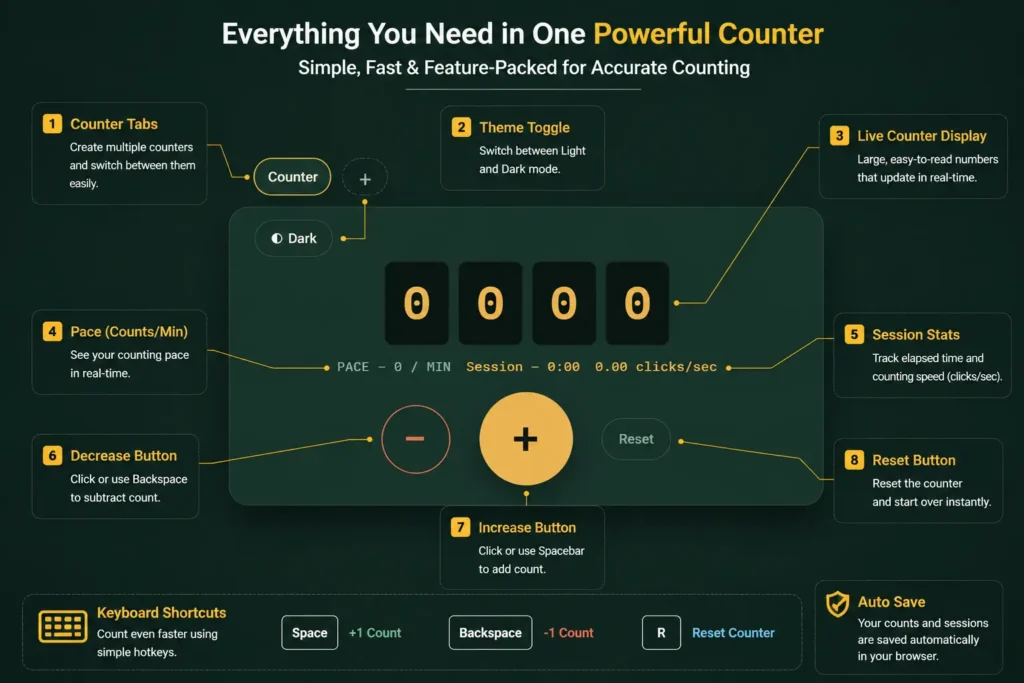
Saved automatically Space +1 · Backspace −1 · R reset
Counter clicker is a multifunctional counting tool that lets you count objects, scores, workouts, steps, money, people, inventory, events, or anything else you want to count with one click. Simply, use the plus button to increase the counter value and the minus button to decrease it, and set custom values if needed. Unlike other tally counter tools, its user-friendly design lets you count easily and save your records online. No more bulky mechanical devices; enjoy a faster digital counting online.
Multiple Counter-Clickers
Multiple counters are clicked to track multiple counts. We can add names to each counter differently and add an unlimited number of counters at the same time. The + button increases your counts, the – button decreases them, and the x button resets them.
How Does the Counter Clicker Work?
Click the + button to raise the counter.
Click the – button to lower the counter.
Click the X button to reset the counts.
Click the Add counter button to add a counter.
How Does the Multiple Counter Clicker Work?
The multiple counter clicker runs several counters side by side on one screen, so you can track different things at once without switching tabs or losing a total. Here’s how to use it:
Add a Counter
Click the Add counter button. A new counter card appears below the existing ones, starting at zero. Add as many as you need. There’s no limit.
Name Each Counter
Click the label at the top of any card and type a name, such as Reps, Guests, Shelf A, or Lap. Names make it easy to tell counters apart when you have several running, and they save automatically.
Count Separately
Click + to raise a counter and – to lower it. Each card keeps its own total, so tapping one counter never affects the others.
Reset or remove
Click the X on a card to clear that single counter back to zero. Other counters keep their totals untouched.
Come back later
Every counter, its name, and its current value are stored privately in your browser. Close the tab, return tomorrow, and your counters are exactly where you left them.
Multiple counters are useful whenever one number isn’t enough counting entries at three doors during an event, logging separate exercises in a workout, or tallying different SKUs during a stock check.
Why Use the Click Counter?
Use the counter clicker to quickly count objects, sports scores, people, and anything else you want to tally.
Why Choose Our Counter Clicker?
Different style click counter or tally counters are available; what makes Counter a superior option? It offers precision, customization, simplicity, faster counting, and greater convenience for users. Built from feedback from fitness coaches, event organizers, and industries. This counter is made for you if you count stuff for work.
That’s why users choose our counter clicker:
- Easy to use: It’s user-friendly. Just open the app and start tapping immediately; no app to install. No email needed.
- Customization with devices & reliability: Custom themes, assigned labels, and flexible counting mode. Provides smooth performance on your mobile, tablet, and desktop. Real-time feedback instantly.
- Data Safety: Your privacy is important to us. Personal data is not asked for. It is available only to you in your browser for your convenience.
Important Features
When you are looking for a free counter that does more than just count, we are here to help. Our feature-packed counter clicker is developed with simplicity and productivity in view. When you’re keeping score and steps during regular workouts, our tool works the way you need it to.
Counting Modes
Not every situation needs the same type of counter. That’s why we have designed a real count mode to fit your needs when you’re tracking steps, people, products, or progress in one click.
Manual Counter Click
Manual counter-click mode makes counting effortless for event tracking, attendance, rep logging, and anything you want to count with a simple click, one count, with simplicity
Support Negative Values
Subtract errors or minimise stock with instant value adjustments to fix your score or count down stock.
Reset Functions
Restart anytime. Tap clear, and you’re set to start with a fresh count anywhere. You’re logging in and out of the session; no problem.
Fully Customise Interface
Track your counts in your own way. Customise your experience with features like
Personalization
Labelling
Assign names to your counters for easy identification and tracking (e.g., spacebar counter, lap counter, attendance counter, event counter).
Light & Dark Theme
Switch between light and dark themes to match your preference and improve visibility.
Custom count limits
Set minimum and maximum values to keep your counter within your preferred range.
Jump to any number
Instantly move to a specific count by entering your desired value.
Auto Save
Your counters and sessions are saved automatically in your browser, so you never loss progress.
Faster Counting
Keyboard Shortcuts
Count faster using keyboard shortcuts such as Space (+1), Backspace (-1), and R (Reset).
Voice Tally Counting
Start speaking, and every recognised word is counted automatically.
Increase and Decrease
You can use the + and − buttons to easily increase or decrease the counts.
Quick Reset
Reset the counter and start all over again.
Change Counters
Switch between counters without having to lose your saved counts.
Live Statics
Real-time Stats
Check the live session statistics, including speed, elapsed time, and counting speed.
Session Timer
Keep a track of how long the counting session is being done using the auto timer function.
Track Pace
Set minimum and maximum values to keep your counter within your preferred range.
SPS Tracking
Track your Speed Per Second (SPS) while counting.
History and Data Management
Session History
Each completed session will save automatically for future reference.
History Log
Check session date, time, duration, counts and SPS all in one place.
Download CSV
The entire session history can easily be downloaded in CSV format.
Delete History
Just click to delete the session history of your completed session.
Privacy & Accessibility
No registration needed
You can start counting right away without having to register an account or signing in.
Private storage browser
Your data stays inside your browser and is never uploaded to external servers.
Compatible interface
You can count from your PC, tablets or mobile devices without any issues.
Features Overview
|
Features |
Description |
Features |
Description |
|
Button |
+ and -, to increase or decrease |
Session timer |
Keep a track of how long the counting session is being done |
|
Counter display |
Real-time on-screen |
Count as you speak |
Start speaking, and every word is counted automatically. |
|
Multiple clicker |
Unlimited counting |
Track pace |
Monitor ,counting per minute. |
|
Timer mode |
Max clicks in a limited time |
SPS |
Track your speed |
|
Reset button |
Resets counts to zero |
Private browser |
All your data is private. |
|
Click history |
Track your click progress |
Compatible interface |
You can count on every device. |
|
Sound effects |
Audio on clicks ON/Off |
No rigestration |
No needed |
|
Mode/Theme |
Light or dark themes |
Real time stats |
Check the live sessions. |
|
Export |
Download your history/csv |
Delete |
Click to delete all sessions |
Use Cases Across Industries
Does a counter clicker or tally counter work for your unique situation? We’ve made the counter-clicker tool flexible enough to handle manually with your hand just about any situation you might encounter. Counting daily activities? Counting people? Checking inventory? Logging workouts? Doing research? Our counter can help.
Here’s how people actually use this counter clicker tool.
Using a Counter Clicker with a Spacebar Counter
A counter clicker can also be used with a spacebar counter. This way you can keep track of how many times you press your keyboard while practicing or doing clicking speed tests/challenges. A spacebar counter records how many times you press the spacebar within a set period. No download necessary; it runs directly in your browser. Just click and see how fast you can click.
Step Counter for Daily Activity Tracking
A step-counter tool may help you track your steps throughout the day. It has counter-clicker buttons like + and -, as well as a reset button, which makes counting very easy. Whether you’re walking to work or cleaning your house, your step counter tracks your steps throughout the day.
Events & Crowd Management
Crowd control at events can be chaotic if you’ve ever worked one. Manage headcounts at doorways, track how many guests enter each area, and instantly share counters with teammates using the counter tool. Forget estimating and writing things down; our simple tool provides you with reliable, timestamped counts. Venues, trade show organisers, and security professionals use our tool throughout the U.S.
Inventory Management
Say goodbye to clipboards. This counter clicker app was designed for inventory tracking on warehouse floors, in stockrooms, and in small businesses. Tag counters by item or location, export your counts at shift change, and sync between devices. It’s quicker, cleaner, and less susceptible to human error than counting by hand. Everyone gets benefits, including your employees.
Fitness Tracking
Looking for a workout counter? Gym instructors and athletes use our counters to track reps without interrupting their flow. Great for counting sets, laps, or during group fitness classes/rehab.
Education & Research
The cause of the mentioned problem is usually linked to the speed of your computer or another device. To fix this issue, try clearing the files saved in your browser and closing all open tabs.
Common Troubles with Counter Clicker
If your counter clicker suddenly starts misbehaving, there is usually little to no warning from your side. The following are the most common problems people encounter when using their counters, along with solutions for fixing each.
Not Registering Clicks
The reason for this behaviour is a slowdown in your browser due to an excessive number of tabs currently open, which consume too much memory. To fix this issue, try refreshing the page, closing all tabs except the counter, and switching to a browser such as Chrome or Edge.
Counter Reset by Mistake
If your counter was accidentally reset, make a rule to check your current count before pressing the reset button, as some counter clickers do not save the history of previous counts. If several counters behave this way at once, update your browser and avoid Internet Explorer.
Lagging or Freezing
The cause of the mentioned problem is usually linked to the speed of your computer or another device. To fix this issue, try clearing the files saved in your browser and closing all open tabs.